
DVR replacement · coaxial CCTV · Bangalore
DVR Installation in Bangalore
If the recorder in an existing CCTV system has stopped working, replacing it may not mean replacing every camera. First check the camera format, coaxial cable, connectors, power and storage. The condition and compatibility of those parts determine what can sensibly be retained.
DVR installation, replacement and existing-system checks for homes and businesses.
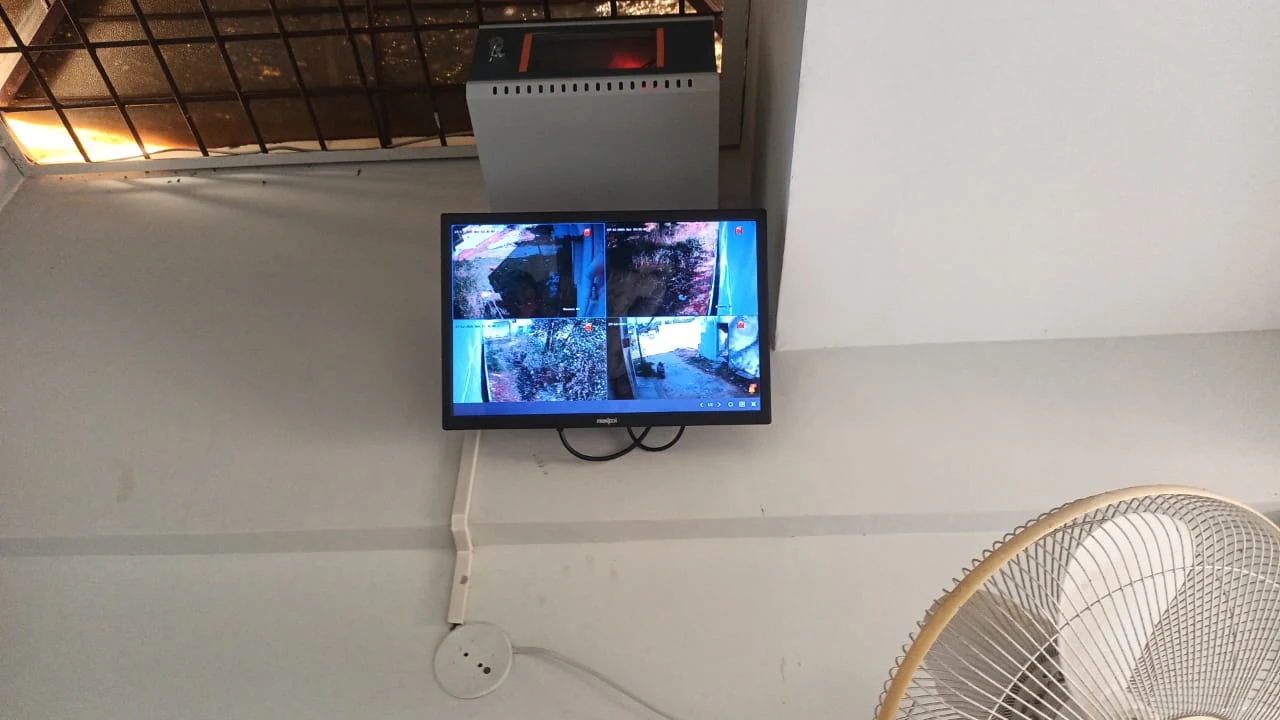
Start with the system already on site
Many homes, shops and offices already have cameras connected to a recorder over coaxial cable. When the DVR fails, the first question is often whether all the cameras have to go too. Sometimes compatible cameras and usable cable can stay; sometimes a camera, power or cabling fault is behind the symptoms and a recorder swap alone would not fix it.
Smartronic handles DVR installation, replacement and configuration, and can discuss upgrade options after the existing setup and required coverage are understood. This guide focuses on DVR-based coaxial CCTV. For the full system plan, see complete CCTV installation in Bangalore.
A recorder fault does not condemn every camera
DVR stopped working? Check before replacing the whole CCTV system
A failed DVR, missing channel or recording problem can come from the recorder, HDD, camera power, coaxial run, connector or camera. A black screen alone does not identify the failed part. Note which channels have live video and recordings, and check for drive or channel errors.
If the recorder failed but compatible cameras and cable remain in good condition, a DVR replacement or partial upgrade may work. If images are noisy or intermittent, test cable, connectors and power first; a new recorder will not repair those faults.
A recorder for compatible camera signals
What is a DVR?
DVR means Digital Video Recorder. In a typical coaxial CCTV installation, compatible cameras send video over a coaxial cable to the DVR. The recorder processes the incoming signals, manages live display and recording, and saves footage to a supported hard disk drive (HDD).
*Mobile access depends on compatible DVR features and a configured network connection. The exact wiring and power arrangement varies by system.
From camera signal to playback
How does a DVR CCTV system work?
- Camera captures video. Settings and the view determine the image.
- Cabling carries the signal. Compatible coax connects to the DVR; the camera also needs suitable power.
- DVR processes and records. It must support the camera format and applies the recording schedule.
- HDD stores footage. Retention depends on drive capacity and recording settings.
- Monitor or supported network access provides viewing. Remote access needs compatible features and configuration.
A live picture is not proof that recording works. Check the drive, timestamp and playback for each important camera.
The camera signal must match the recorder
What cameras work with a DVR?
DVR systems are commonly used with analog CCTV cameras and compatible HD-over-coax cameras. Different cameras may use different video formats or resolution ranges. A DVR input needs to support the camera’s signal; fitting the same connector does not prove the two devices are compatible.
Before connecting or replacing cameras, check the video format, supported resolution, recorder input specification, connector and cable condition, power requirements and manufacturer compatibility. Some DVRs support more than one camera format, while others have narrower support. Confirm the specific recorder and camera documentation rather than assuming any coaxial camera will work.
Camera selection, mounting and field of view are covered in our CCTV camera installation guide.
An upgrade path for suitable coaxial systems
What is HD-over-coax?
HD-over-coax refers to CCTV technologies that carry higher-resolution video over coaxial cabling. It can let a system move beyond older analog picture formats while making use of existing coax runs that are still suitable. The camera and DVR still need to support the same format and relevant resolution.
It is not a guarantee that every old coax installation can support a new camera. Cable length, condition, connectors, power, signal quality and previous installation work all matter. Check the actual run and recorder compatibility before choosing an HD-over-coax upgrade.
An IP camera system uses a different network-based architecture. If that is the right direction for the property, read about NVR installation in Bangalore.
Inspect the route, not just the plug
Can existing coaxial CCTV cables be reused?
Sometimes. Check each run’s length and condition, joints, connector termination, signal quality, moisture exposure, damage, interference and camera power. A cable can look sound at the recorder while a connector or joint near the camera is failing.
If a picture is noisy or intermittent, test its cable and power path before replacing the DVR. A recorder swap will not fix damaged coax. Reuse only runs suitable for the proposed cameras and recorder.
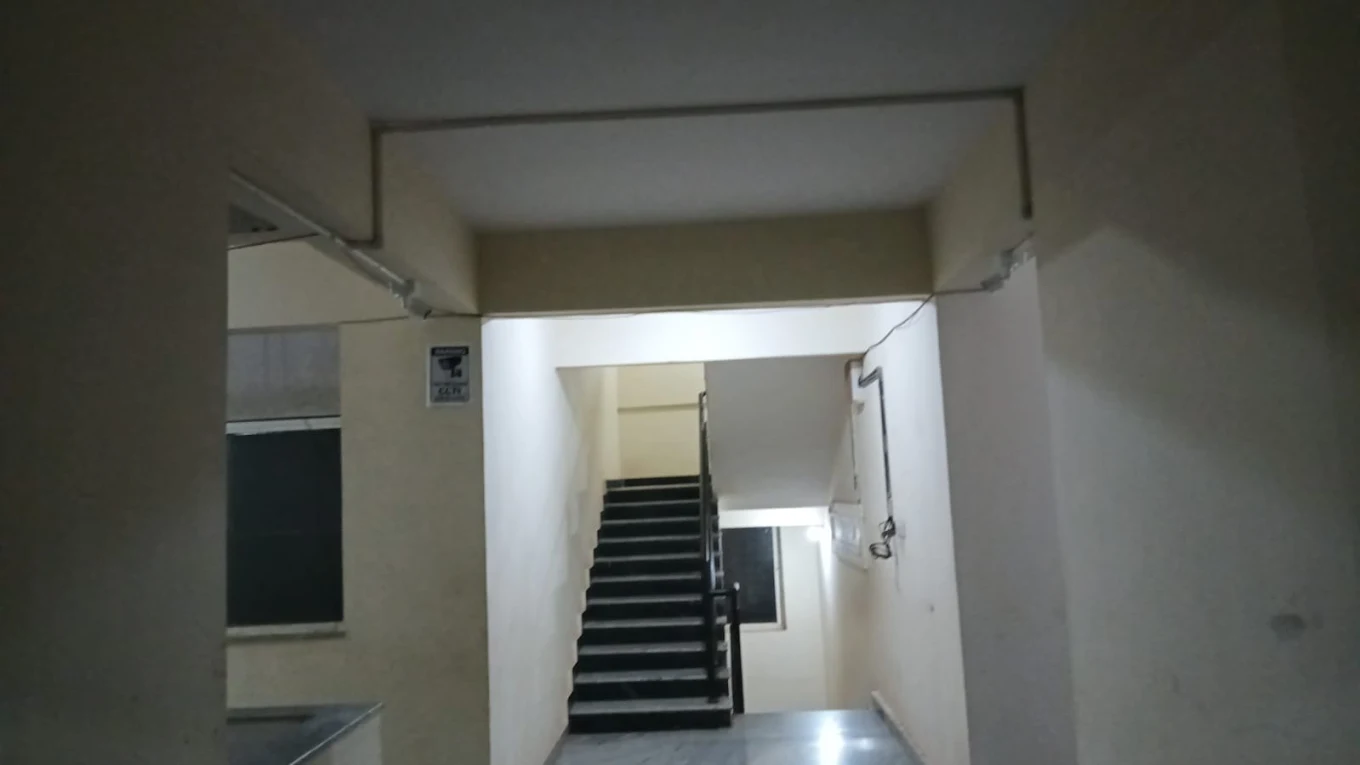
Keep compatible components where it makes sense
DVR replacement without replacing all CCTV cameras
A DVR may need replacement after recorder failure, HDD errors or when supported features no longer meet the requirement. Existing cameras may stay if their format and resolution are supported and cameras, coax, connectors and power are serviceable.
For a 4-, 8- or 16-camera system, identify camera types, test feeds and note active channels. Match the replacement’s inputs and drive support to the actual installation; do not choose by channel count or connector shape alone.
Upgrade only what the system needs
Upgrading an existing DVR CCTV system
Depending on inspection, an upgrade may replace the DVR or HDD, change selected cameras, repair cable or power, add compatible cameras, adjust positions or configure mobile access. It need not replace every component.
For a higher-resolution coaxial setup, check whether HD-over-coax cameras, DVR and cable suit the site. If IP cameras or a different expansion plan fit better, migration to an NVR requires network cameras, Ethernet, suitable power/PoE and a compatible recorder.
Diagnose before deciding
When should a DVR be replaced?
Repeated shutdowns, missing camera channels, recording failures, HDD errors, frequent overheating, or features that no longer meet the requirement can be reasons to investigate a DVR. Remote access problems may also come from the network, router, app or account rather than the recorder itself. Age alone does not establish that a DVR has to be replaced.
First check whether the issue follows a camera, cable, power supply, drive or recorder input. If failures repeat after connections and power are checked, or if the DVR cannot support the compatible cameras or functions needed, replacement may be appropriate. A diagnosis helps avoid changing a functioning component while leaving the actual fault in place.
Inputs and future requirements
How many cameras can a DVR support?
DVRs are available with different channel counts, commonly described as 4-channel, 8-channel or 16-channel, with larger systems also available. A channel generally represents a camera input. The DVR’s exact specification determines the supported camera formats, resolutions and other input limits.
If six cameras are in use today, consider whether additional views may be needed before choosing an 8-channel recorder. Also check compatible inputs, camera power, cable routes and whether added recording would require more storage. Spare channels are useful only if the rest of the system can support the new cameras.
Storage follows the recording plan
DVR storage and HDD requirements
HDD capacity affects how much footage can be retained. The requirement depends on camera count, resolution, frame rate, bitrate, recording schedule, continuous or motion/event recording and the retention period sought. DVR support for drive capacity and configuration also matters.
Camera count alone cannot produce a reliable storage estimate. Confirm the camera settings, expected schedule and desired retention, then check the recorder specifications. A surveillance-oriented HDD may be appropriate depending on the system and manufacturer recommendations; compatibility should be verified.
After installation, check that the DVR recognises the drive, recording is enabled for the intended channels, and playback contains footage from the expected times. If the recorder reports a disk warning, investigate the drive and recording status rather than assuming the cameras are the cause.
Choose settings for the premises
Continuous recording vs motion recording on a DVR
Continuous recording saves video through the selected schedule and generally uses more storage. Motion or event recording saves footage according to configured activity rules and may reduce storage use, but the outcome depends on camera position, scene activity, recorder settings and how events are detected.
Motion recording is not right for every site. A busy entrance may generate frequent events, while activity outside the detection area may not trigger the expected clip. Check sample playback and confirm the event schedule covers the times that matter. Do not assume a fixed number of storage days or a guaranteed storage saving.
Local recorder with optional remote access
DVR remote viewing on mobile
Where the DVR supports it, mobile viewing usually involves connecting the recorder to the property network, configuring its supported application or access method, setting user permissions and testing on the customer’s phone. Some DVRs provide live view, playback or notifications; available features vary by model and configuration.
Use appropriate account access and avoid sharing administrator credentials unnecessarily. A live view on the local monitor does not prove that remote access works, so test it over the intended network connection and explain the basic app steps to the owner.
Internet and local recording are separate
Does a DVR need internet?
No, an internet connection is not necessarily required for a DVR to record locally. If the cameras, recorder, HDD and power are working and local recording is configured, footage can be saved on site without internet.
Internet is generally required for remote mobile viewing, remote playback and some network notifications or other supported functions. A system may still have a local network connection even when there is no internet service. The exact arrangement depends on the DVR and installation.
Backup needs to cover the components
What happens during a power cut?
The DVR, cameras and any display or network equipment need power. A UPS can keep selected devices operating during an interruption, but runtime depends on battery condition, capacity and total connected load. If the cameras use separate power adapters, those need to be included in the plan as well.
Decide what should stay online: recorder and cameras for continued local recording, and router/network equipment if remote access should also remain available. A UPS connected only to the DVR cannot keep unpowered cameras recording. Do not assume a fixed backup duration without calculating the load.
Keep the recorder protected and serviceable
Where should a DVR be installed?
Choose a secure location with stable power, ventilation and protection from moisture, dust, excess heat and casual tampering. Leave practical access to the recorder, HDD and camera connections for maintenance. Keep cable entries organised and avoid placing the DVR where it can be easily unplugged or obstructed.
Consider how the local monitor will connect, whether network access is needed and whether the UPS can be placed safely nearby. Hiding the recorder in a hot or inaccessible cupboard may make routine checks harder and affect ventilation.
Existing infrastructure varies by property
DVR installation for homes and businesses
Homes and apartments
Check views at the entrance, gate, parking, rear door, staircase or corridor according to the layout. Existing coax runs may follow different routes between floors. In shared buildings, confirm permissions and avoid recording neighbours’ private spaces.
Offices
Entrances, reception, corridors, storage and selected transaction areas may have different viewing needs. For multiple floors, check how coax runs reach the recorder and keep coverage away from private areas.
Shops and retail
Consider entrances, billing counters, customer areas, stock rooms and rear access. Shelves and displays can block a view, so review camera angles after the layout is in place.
Warehouses and commercial properties
Gates, loading areas, storage zones, long aisles and perimeter views can involve longer or more exposed cable routes. Check the existing coax infrastructure, signal quality, power and recorder capacity zone by zone.
Different recording architectures
DVR vs NVR: what is the difference?
| Consideration | DVR | NVR |
|---|---|---|
| Recorder | Digital Video Recorder for compatible camera signals. | Network Video Recorder for supported IP camera streams. |
| Typical camera architecture | Analog or HD-over-coax CCTV. | IP/network cameras. |
| Typical cabling | Coaxial video cable, with a suitable camera power arrangement. | Ethernet/network cable; power may be provided through PoE where supported. |
| Network path | Camera signal runs to the DVR; network access can be added for supported remote functions. | Camera video travels over a network to the NVR. |
| Existing coax | Can suit a compatible, serviceable coaxial installation. | Coax is not normally the primary IP camera connection. |
| Upgrade fit | May make sense when compatible existing cameras and coax should remain. | May suit a move to network cameras and structured Ethernet cabling. |
Neither recorder type is automatically better. Existing cameras and cable, required features, network plans and future changes all matter. For a network-camera design, see NVR installation in Bangalore; for a broad system assessment, see CCTV installation in Bangalore.
Test what you plan to retain
Can existing CCTV cameras be reused?
Existing cameras may be reusable if their video format and resolution are supported by the DVR and their image, housing, lens and connections are in suitable condition. Check power, cable quality, connectors and the recorder’s input support. A camera that powers on may still produce a poor image or be incompatible with the desired recording format.
Test individual feeds and review their day or night view where relevant. Make a note of cameras that need attention rather than treating the system as all-good or all-bad. The findings help decide whether to retain all cameras, replace selected units or plan a broader upgrade.
Check capacity beyond an unused input
Can more cameras be added to an existing DVR?
Possibly. Check available DVR channels, camera signal format and resolution, power supply capacity, cable routes and the recorder’s recording limits. More cameras also add storage demand, which may affect the HDD plan and expected retention.
An open input does not automatically mean any camera will work there. Confirm the camera and DVR compatibility, the power and cable arrangement, and whether the recorder can handle the additional recording load before installation.
Avoid assumptions during a replacement
Common DVR installation mistakes
- Skipping camera-format and resolution compatibility checks.
- Assuming old coax is suitable without testing it.
- Leaving loose or damaged BNC terminations.
- Ignoring camera power faults.
- Guessing HDD capacity instead of checking recording settings.
- Placing the DVR in heat, moisture or poor ventilation.
- Ignoring UPS needs for recorder and camera power.
- Not checking date/time or recording schedules.
- Testing live view but not recording and playback.
- Leaving supported remote access untested.
- Adding cameras without checking channels, power and storage.
A recorder is one part of the job
DVR installation vs buying a DVR
A new recorder still needs to match the cameras and cabling. A complete setup includes checking video formats, connecting and identifying camera inputs, confirming power, fitting or checking supported storage, setting date and time, configuring recording, and setting up network access where required.
Then verify the result: view each camera, confirm recording, search and play back footage, and test mobile access if it is part of the plan. These checks help reveal a bad cable or camera before the system is considered ready. The installation scope depends on the existing equipment and site.
What we check and configure
What happens during a Smartronic DVR installation?
- Understand the issue. Discuss the existing system, symptoms and required views.
- Inspect where applicable. Check cameras, coax, connectors, power, recorder and HDD.
- Plan compatible equipment. Consider formats, channels, storage and likely additions.
- Install and configure. Connect cameras and display; set date/time, recording and supported network access.
- Verify and explain. Test each camera, recording and playback, then review basic operation.
Scope depends on equipment and site conditions. Existing components are retained only if suitable and compatible.
Existing systems across different sites
DVR installation and CCTV upgrades in Bangalore
DVR replacement and upgrades may suit apartments, houses, villas, offices, shops, clinics, schools, warehouses and commercial buildings. Multi-floor sites, long coax runs and enclosed recorder locations each change what needs inspection.
Smartronic is based in HSR Layout and discusses CCTV work across Bangalore, including BTM Layout, Koramangala, JP Nagar, Jayanagar, Bannerghatta Road, Electronic City, Bommanahalli, Begur, Sarjapur Road, Bellandur, Marathahalli, Whitefield, Brookefield, KR Puram, Indiranagar and Domlur. Ask about your property and setup; this does not imply a separate office in each area.
For broader security-camera applications, see security camera installation in Bangalore.
Questions about replacement and setup
Frequently asked questions about DVR installation
What is a DVR?
A DVR records video from compatible CCTV cameras to a supported HDD. Many coaxial systems use it to manage live view and playback.
What is the difference between DVR and NVR?
DVRs commonly use compatible coaxial cameras; NVRs use IP cameras on a network. Choose according to existing equipment and system needs.
How many cameras can a DVR support?
DVRs have different channel capacities, such as 4, 8 or 16. Camera format, resolution and recorder specifications determine usable inputs.
Can I replace only the DVR?
Possibly. First confirm that existing cameras, coax, connectors and power are serviceable and compatible with the replacement DVR.
Can I reuse my existing CCTV cameras?
Sometimes. Check camera format, resolution, condition, power, connectors and compatibility with the proposed recorder. Test each feed before deciding.
Can old coaxial cable be reused?
Sometimes. Inspect cable length, joints, connectors, damage, moisture and signal quality; a DVR replacement will not repair a faulty run.
What is HD-over-coax?
It carries compatible higher-resolution CCTV video over coaxial infrastructure. Camera, cable and DVR support must match; not every old run is suitable.
Does a DVR need internet?
No. Many systems record locally without internet if the cameras, DVR, HDD and power are operational.
Can DVR cameras be viewed on a mobile phone?
Many DVRs support mobile viewing when network access and a compatible app are configured. Features vary; test the customer’s device.
Will a DVR record if internet stops?
Local recording may continue during an outage if the DVR, cameras and power remain operational. Remote access usually stops.
What happens during a power cut?
Recording stops if the DVR or camera power is lost. A UPS may help; runtime depends on capacity and connected load.
How much HDD storage does a DVR need?
It depends on camera count, resolution, bitrate, schedule, recording mode, retention and the DVR’s supported drive capacity.
Can I add cameras to an existing DVR?
Only if channels, camera format, cabling, power and storage support them. An unused input alone is not enough.
When should a DVR be replaced?
Repeated failures, recording or HDD errors, overheating, missing channels or unsupported features merit diagnosis. Age alone is not decisive.
Can a DVR support higher-resolution cameras?
Only when its inputs support the camera format and resolution. Check the specific recorder documentation before purchase.
Can an old CCTV system be upgraded?
Often partially. Inspect cameras, coax, power, recorder and storage to decide what can be retained or should change.
Can I change from DVR to NVR?
Yes, if an IP/network design suits the property. Coaxial cameras do not automatically connect to an NVR.
How much does DVR installation cost in Bangalore?
It depends on recorder capacity, cameras, compatibility, HDD, cabling, additional components and installation complexity.
Do I need to replace all cameras when replacing a DVR?
Not necessarily. Retain cameras only if compatible, in suitable condition and supported by the replacement recorder.
Start with what is already installed
Discuss your DVR replacement or upgrade
Tell us what the recorder is doing, how many cameras are connected and whether you know the camera or DVR type. Smartronic can discuss what needs to be checked before choosing replacement parts.